Leave & payroll sync
from the Yes Foreman platform
Leave requests approved in a tap, approved timesheets sent to Xero, Gusto or QuickBooks payroll. No retyping hours.
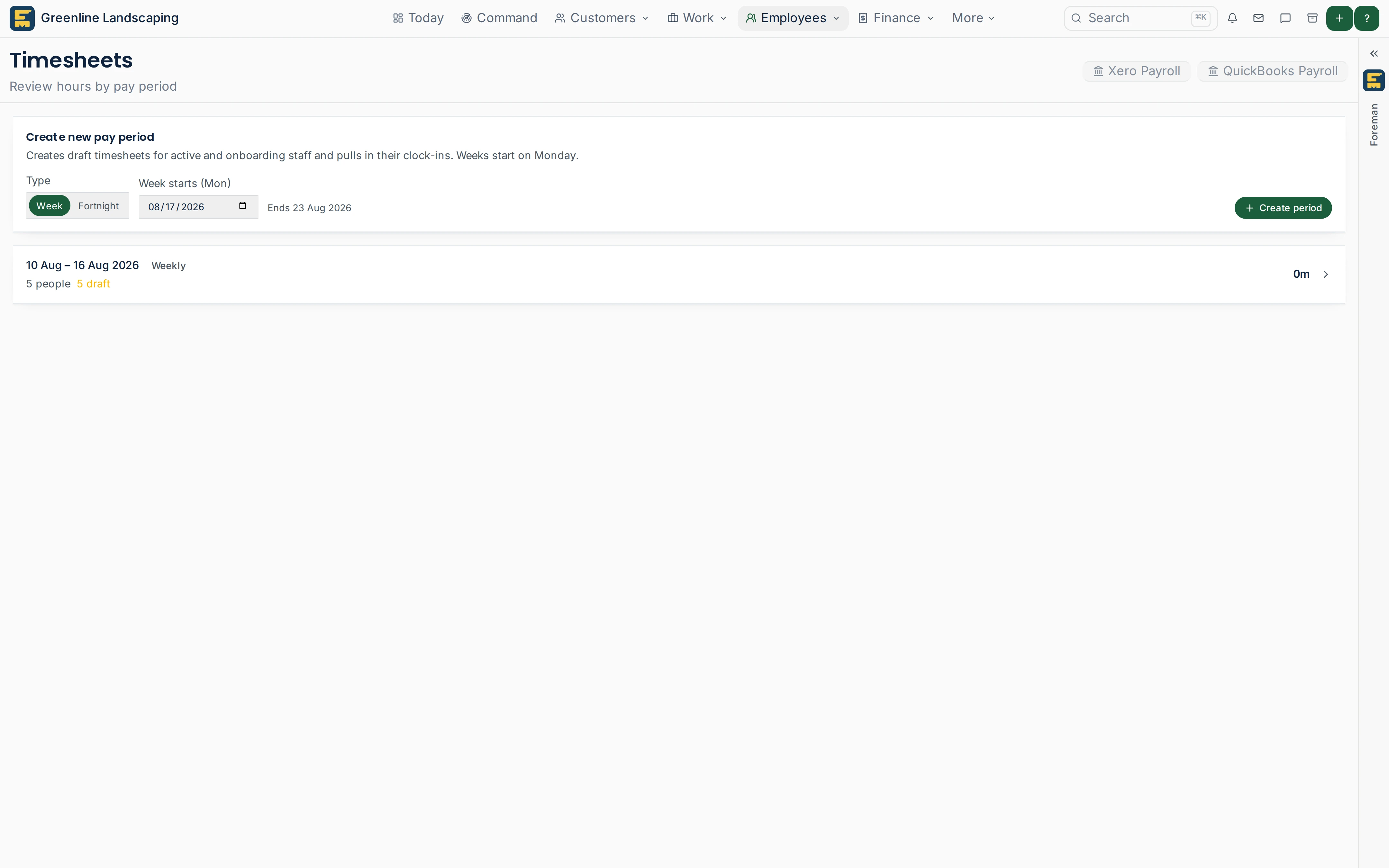
Leave & payroll sync in Foreman: how it works
Leave requests on scraps of paper and hours retyped into payroll are where mistakes creep in. Foreman handles leave requests and approvals in the app, shows who's off on the schedule, and sends approved timesheet hours to your payroll software instead of you keying them.
Step 1
Staff request leave
From the mobile app, staff pick annual, sick, unpaid or other leave, the dates, an optional half day and a reason. Admins get a push notification.
Step 2
Approve in a tap
Approve or decline from the leave inbox on the web or from the mobile app. Approving annual leave deducts it from the person's balance; declining restores it.
Step 3
No double-booking
Approved leave shows as blocks on the schedule board and on the mobile schedule, and a Who's off this week strip sits on the staff page.
Step 4
Send approved hours to payroll
Once every row in a pay period is approved, sync the hours to Xero Payroll AU as draft timesheets. Gusto and QuickBooks Payroll sync are also available.
Leave & payroll sync: common questions
Does Foreman run my pay run?
No. Foreman sends approved hours to your payroll software as draft timesheets; you still review and complete the pay run there.
Which payroll systems does it work with?
Xero Payroll for Australian workspaces, plus Gusto Payroll and QuickBooks Payroll. You map each staff member to their payroll employee once.
Do sick days come off the annual leave balance?
No. Only approved annual leave changes the balance; sick, unpaid and other leave are recorded without touching it.
Stop losing time to paperwork
Start a free trial · 14 days, unlimited members, every feature including AI, cancel any time.