Instant invoices
from the Yes Foreman platform
Job done → invoice sent → you back on the tools. Before the client forgets they hired you.
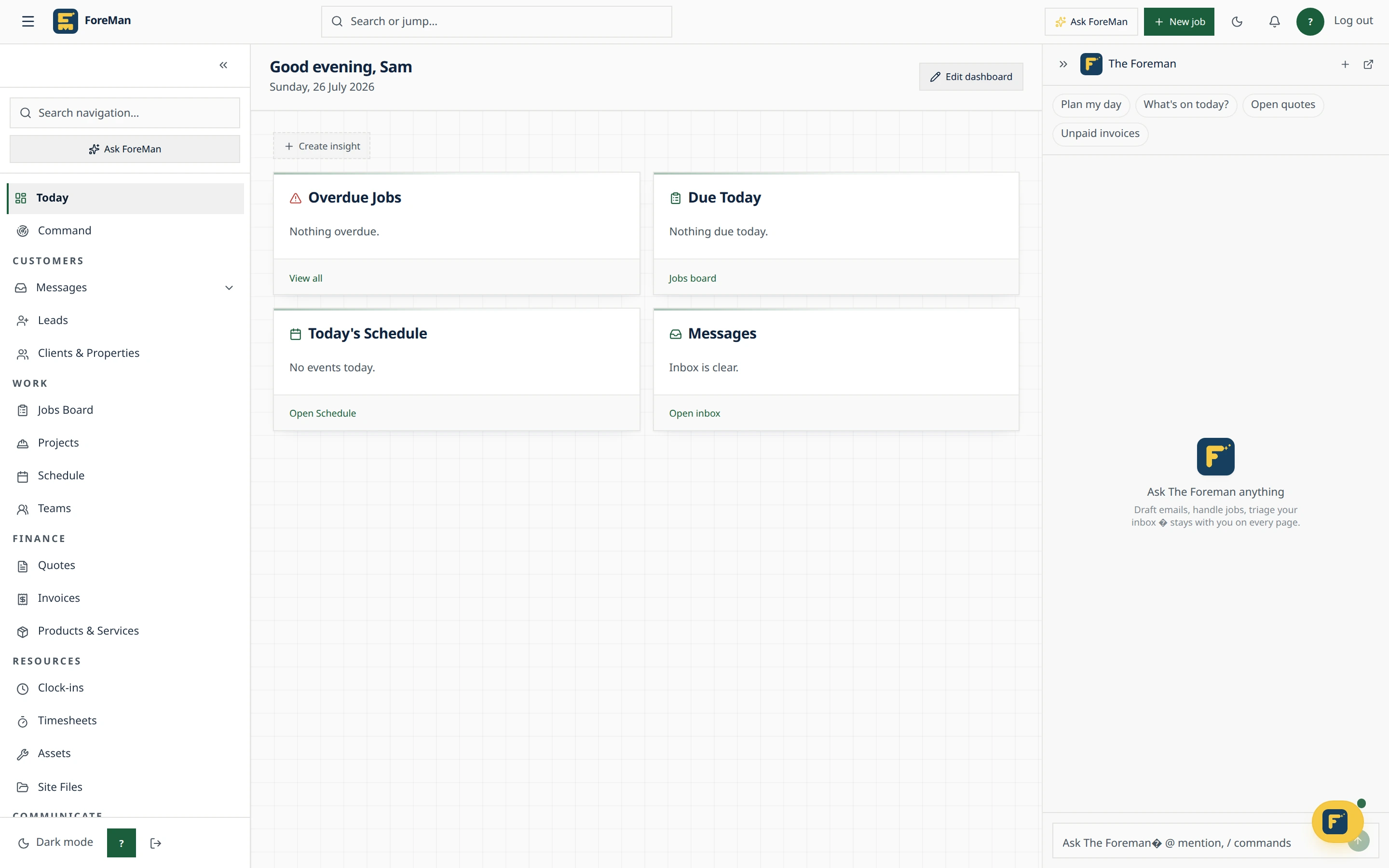
Instant invoices in Foreman: how it works
The best time to invoice is the moment the job is done, while the client still remembers why they called. Foreman builds the invoice from the job and the accepted quote, so there's nothing to retype and nothing forgotten.
Step 1
Start from the work
Convert an accepted quote into an invoice, or use Create drafts to pick completed visits that haven't been invoiced. Foreman makes one draft per client with a line per visit.
Step 2
Or let completion do it
In invoice automation settings, choose to keep invoicing manual, create a draft when a visit is marked Complete, or create and send it to the client's invoice contact.
Step 3
Add a payment link
With Stripe connected, the invoice email includes a Pay button and you can copy a payment link to send by text. When the client pays, the invoice is marked Paid automatically.
Step 4
Sync to your accounts
Push invoices to Xero or QuickBooks, whichever you connect, so your bookkeeping matches what went out.
Instant invoices: common questions
Will Foreman send an invoice for the wrong amount automatically?
Automatic invoices only use firm, positive charges or an eligible accepted quote. Zero-value or estimated prices, projects and quotes with deposits stay as drafts for you to review.
When is an invoice marked overdue?
Sent invoices past their due date move to Overdue on their own. The due date defaults to 14 days and can be changed per invoice.
Can clients pay by card?
Yes, through a Stripe payment link or the Pay button in the invoice email. The money goes to your own Stripe account.
Stop losing time to paperwork
Start a free trial · 14 days, unlimited members, every feature including AI, cancel any time.